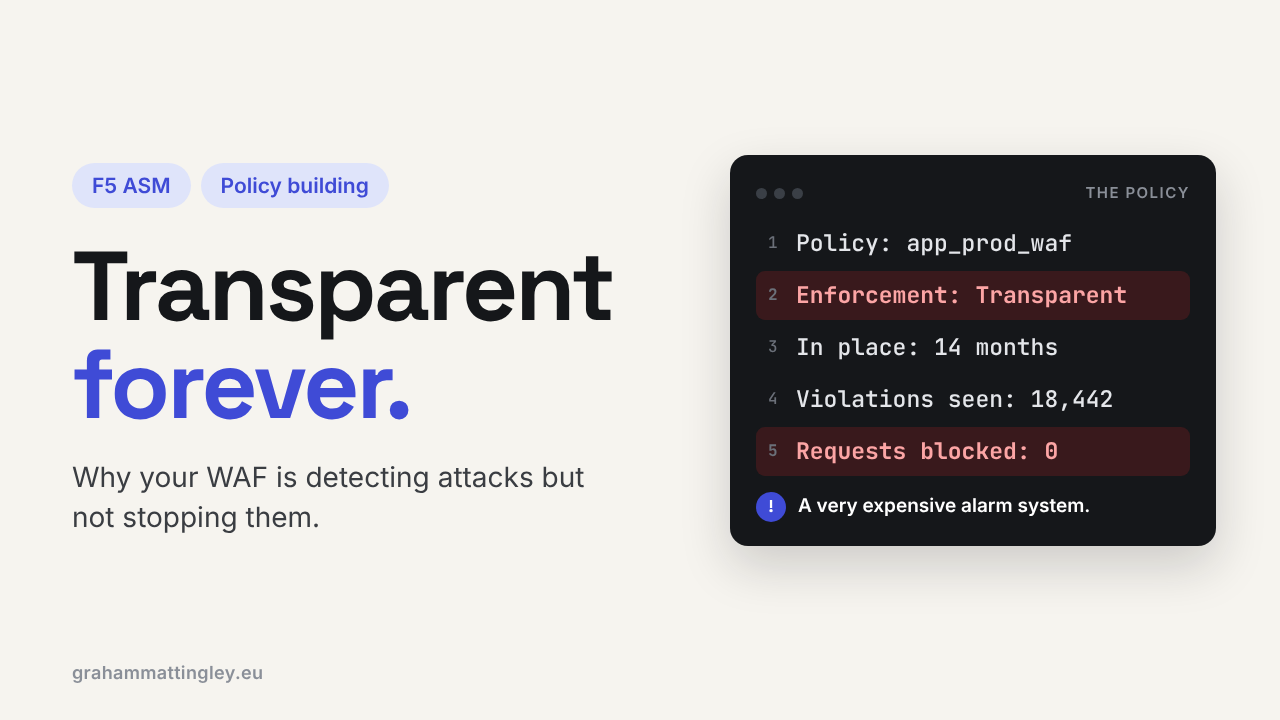
Transparent Forever: Why Your ASM Policy Never Reaches Blocking
Oct 25, 2026Why is my F5 ASM policy still in transparent mode?
Introduction
Transparent mode is not the problem. Forgetting, or being reluctant, to move beyond it is.
I have lost count of the number of ASM policies I have opened that were sitting in transparent mode, and nobody in the room could tell me when they were last looked at. The dashboards look busy, there are thousands of violations in the logs, and the team are happy because "the WAF is in". But the WAF is not stopping anything. It is watching the attacks go past and writing them down.
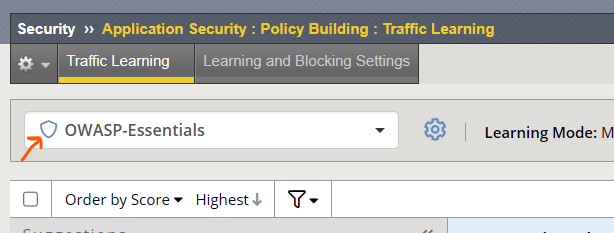
The outline shield next to the policy name means the policy is transparent. A blocking policy shows a filled shield.
That is not a WAF deployment, it is a logging system.
The Problem
In transparent mode ASM does all the work. It checks the attack signatures, the parameters, the HTTP protocol compliance, everything, and it raises the violations exactly as it would in blocking mode. Then it sends the request to the application anyway.
A lot of people miss this bit: it does not matter what you have ticked in Learning and Blocking Settings. You can tick Block on every violation in the policy, and if the Enforcement Mode is set to Transparent, nothing is blocked. The Block flags only start working when the policy itself is in Blocking mode.
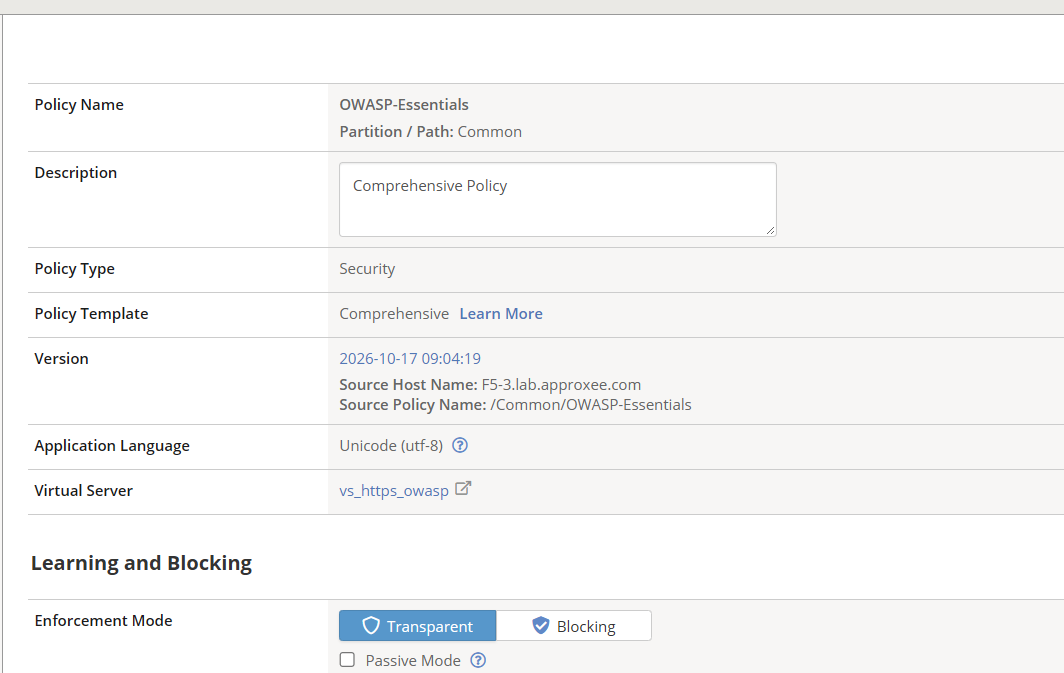
Enforcement Mode in the policy's General Settings. While this says Transparent, no Block flag in the policy does anything.
Now, transparent mode at the start of a deployment is the right thing to do. You learn the traffic, you look at what is being flagged, you deal with the false positives and you find out what the application actually does (which is often not what the developers told you). The problem is when it never moves on from there.
In my experience it is very rarely a decision. Nobody sat in a meeting and said "let's leave it transparent for two years". What usually happens is the policy goes in with a plan to block it later, the person who knew the application leaves or moves to another project, everybody is nervous about blocking a real customer, and the policy just sits there. The next time anybody looks at it is when a pen test comes back and shows the attacks going straight through, or something worse.
A different type of the same problem
You see this one a lot in bigger companies. The policy says Blocking, so everybody thinks it is protecting the application. But when you open it up, the entities have all been left in staging, and most of the Block flags have been switched off in Learning and Blocking Settings. It says blocking on the front screen, but it is not blocking much at all. In some ways this one is worse, because a quick look at the Policies List will tell you everything is fine.
How to Recognise It
This takes a couple of minutes, and I would recommend everybody does it today.
On the BIG-IP go to Security › Application Security › Security Policies › Policies List and look at the Enforcement Mode column. Anything that says Transparent, ask yourself when it went live.
If you have a lot of boxes, the REST API is quicker. This gives you every policy and its mode in one go:
curl -sku admin 'https://<bigip>/mgmt/tm/asm/policies?$select=name,enforcementMode'
Then for each transparent policy, have a look at three things.
The Enforcement Readiness Period. This is in the policy's General Settings and the default is 7 days. It is how long a signature or entity stays in staging before ASM says it is ready to enforce. If the policy has been live for six months, it has been through that cycle more than twenty times. It is not waiting for more time.
Traffic Learning. Under Policy Building › Traffic Learning you can see how many signatures and entities are ready to be enforced. If that number is big on a transparent policy, the hard work has already been done and nobody has acted on it. That one always annoys me.
The request log. Go to Security › Event Logs › Application › Requests and filter for illegal requests. Every single one of those reached the application.
That last one is the screen to show to whoever owns the risk. "The WAF is in transparent mode" means nothing to a manager. "These attacks got through to the application last week" gets attention very quickly.
The Risk
The obvious risk is that the application is exposed. SQL injection, XSS, all of it, detected and logged and delivered to the server.
The less obvious risk, and I think the bigger one, is false confidence. The organisation believes it has a WAF protecting the application. It is on the architecture diagram, it is in the audit response, somebody has ticked a box. So nobody else is looking at that application's security, because "the WAF covers it".
Mitigation
The thing I most want people to understand is that blocking is not all or nothing. This is where most teams get stuck, because they think switching to Blocking means everything starts blocking at once. It doesn't.
When you move the policy to Blocking, only the violations you have set to Block will block. Signatures and entities that are still in staging only alarm, even in a blocking policy. And new signatures that come in with an update go into staging too, so a signature update won't suddenly start blocking traffic you have never tested.
So this is how I would do it:
- Set the blocking date on day one, when the policy goes live, and tell the application owner. Three or four readiness periods is normally enough, it depends on how much traffic the application gets.
- Use those weeks to tune. Go through the learning suggestions, accept the genuine ones, and fix false positives with exceptions on the specific URL or parameter. Please don't fix a false positive by turning a violation off for the whole policy.
- Switch to Blocking with a short list of things set to Block. Start with the signatures that have come out of staging, and the protocol and evasion violations you know are clean from your logs. Leave the noisy ones on alarm for now.
- Watch the request log every day for the first week. If a real user gets blocked, the blocking page gives them a Support ID. Put that into the request log search and you can see exactly what fired and why, so you can fix it in minutes.
- Add more to the Block list each week until everything that should block, blocks.
The application is protected from the first day you switch, and the risk of breaking something is small because you control exactly what blocks.
Gotchas and Limitations
Check the menu paths against your own version. These are the TMOS 17 locations, and F5 moves things around between versions.
Also be careful with the Block flags at the top of Learning and Blocking Settings. Some of them are set per group, for example HTTP protocol compliance, so blocking the group affects every sub-violation you have enabled in it.
Takeaway
Transparent mode is how you put a WAF in safely. It is not where you leave it. Go and look at your Policies List today, read last week's illegal requests, and put a date in the diary.
If your ASM policy has been transparent for months, you may not have a WAF deployment. You may have a very expensive alarm system.
If you want to see this done properly, my free OWASP Top 10 Essentials course takes a real policy on a lab BIG-IP from transparent to blocking, with the attacks running against it.
Get F5 in Practice by email
One practical F5 insight at a time, written by me from work I've actually done.
Your email stays with me. It is never shared.
No spam. I will never sell your information, for any reason.